Service Meetings
Service Meetings or Business Meetings are meetings such as District/Area Service committees or subcommittees such as Public Information, H&I, IT etc.
Creating a new service meeting
Requirements
You will need permissions to access the main site of the CAUK multisite instance.
You can access the WordPress administration backend for that here.
Emails
The Email notifications will be sent to wtf@cauk.org.uk and will have the subject "New Update/Register Service Meeting Entry". These are different from the typical WTF meetings.
How it works
Service Meetings are managed as Events. However, these are not the same as the events on the Events subsite.
After going to the main site, you can click "Events" on the left menu.
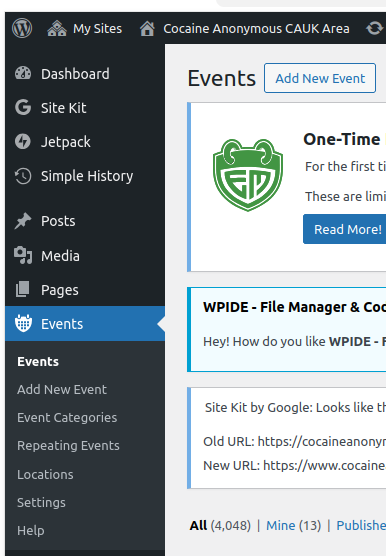
Creating the new service meeting
Click "Add a New Event".
The title of the event should be in the format "[DISTRICT NAME] [COMMITTEE NAME]" e.g. "South Central District Service Committee" or "Surrey & Berkshire District Public Information Committee".
Add any pertinent information to the meeting description, e.g. location or online meeting details.
On the right-hand side, check the "This is a recurring event" checkbox.

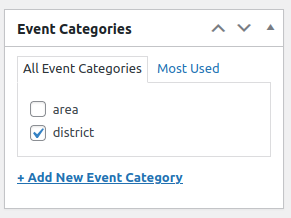
Still on the right-hand side, choose the correct category for the meeting, either "area" or "district" depending if it's for an area or a district.
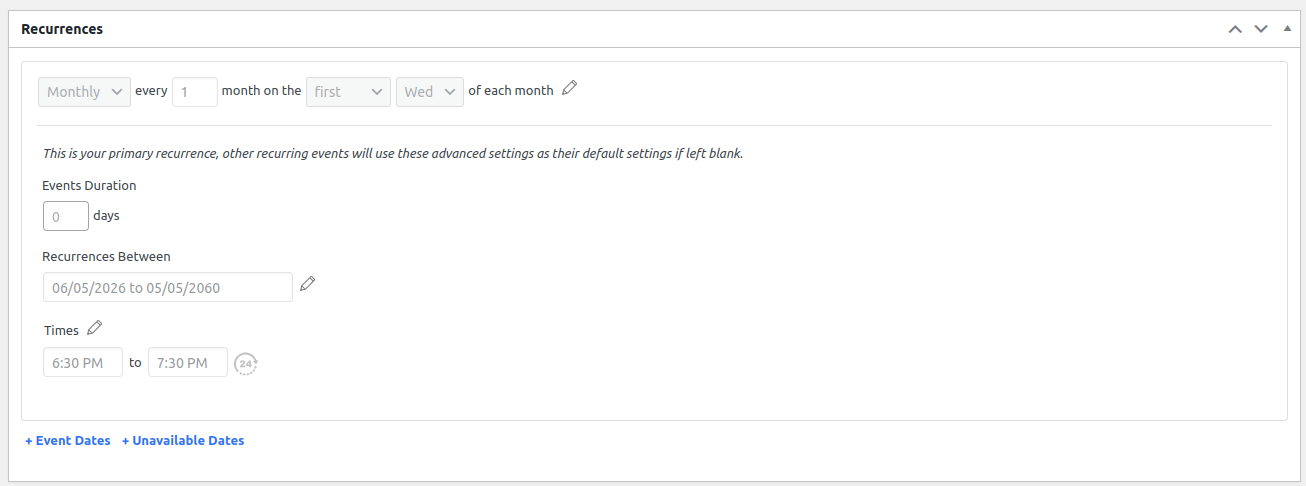
Scroll down to the "Recurrences" section and enter the day/date information for the meeting.
You will need to enter the start/end dates for the recurrences. You should use the date picker to choose the first date that you want the events to show up from (you can pick a date in the past if you need). You should use the date picker to choose an end date very far into the future, so that the event doesn't expire - anytime after 2050 should be good.
The below example is for a monthly meeting on the first Wednesday of the month, from 6:30pm to 7:30pm.
Scroll down to the "Discussion" section and make sure "Allow Comments" is unchecked.

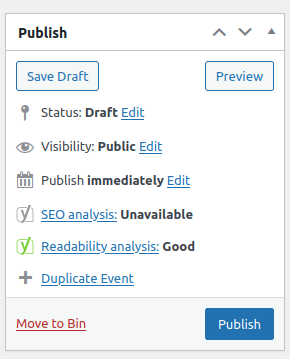
You can now scroll back up and click "Publish" on the right-hand side.
Check once the page reloads that there are no warning at the top about setting up the recurring meeting.
Check that the meeting shows up correctly on the Service Meetings page.